How to use Fix Photo Dates
A complete walkthrough: from downloading the app to saving every iCloud photo on your PC with the exact original date. Takes about five minutes to read, and the app does the rest.
Download & open, plus the "Windows protected your PC" pop-up
Click Download free trial to get a .zip file. Unzip it, then open the FixPhotoDates folder and double-click FixPhotoDates.exe inside it. Nothing to install (Windows 10 & 11).
Where does the file go? Your browser puts the zip in your Downloads folder. Click it at the top of your browser window, or press Ctrl + J to see recent downloads. Right-click the zip → Extract All, then open the extracted FixPhotoDates folder and double-click FixPhotoDates.exe.
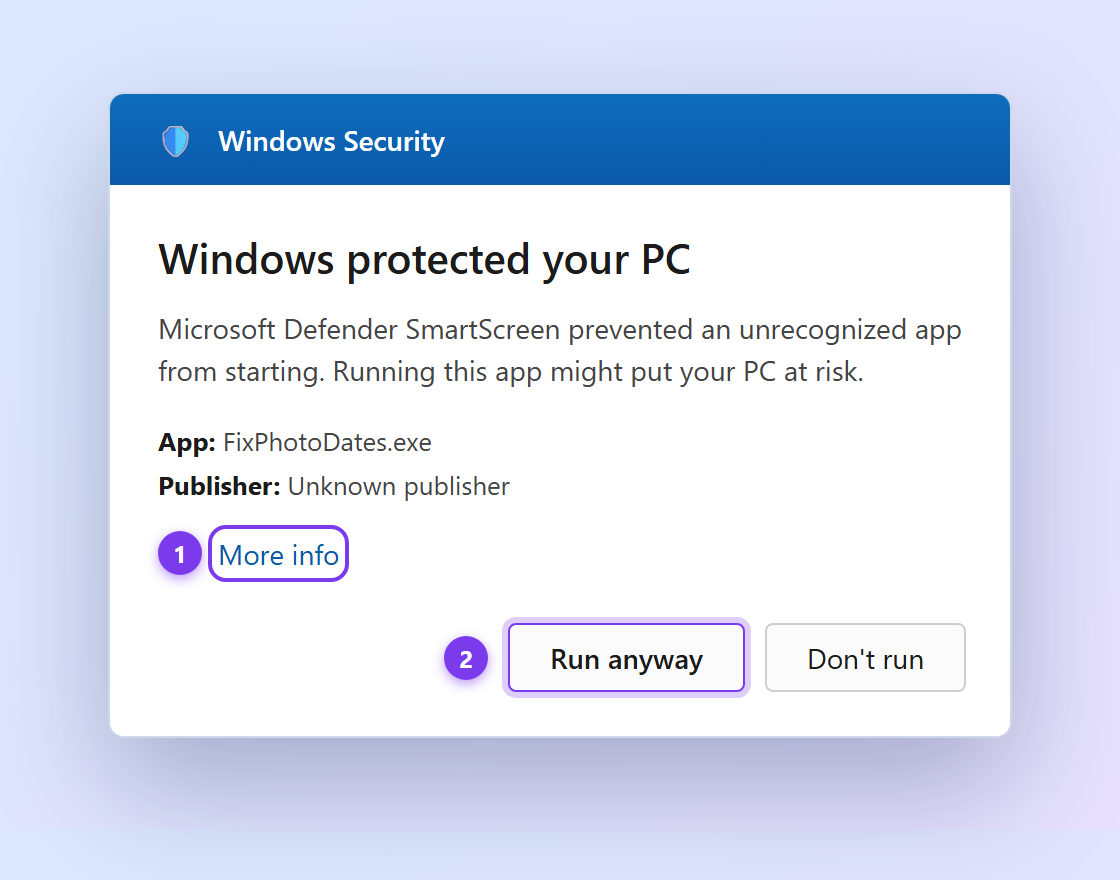
Windows may show a blue "Windows protected your PC" screen. Don't worry, it appears for every new app that isn't widely downloaded yet, and it is not a virus warning. Just:
- Click More info (①)
- Then click Run anyway (②)
The app opens right up. This message fades away on its own as more people download it.
Sign in and pick your settings
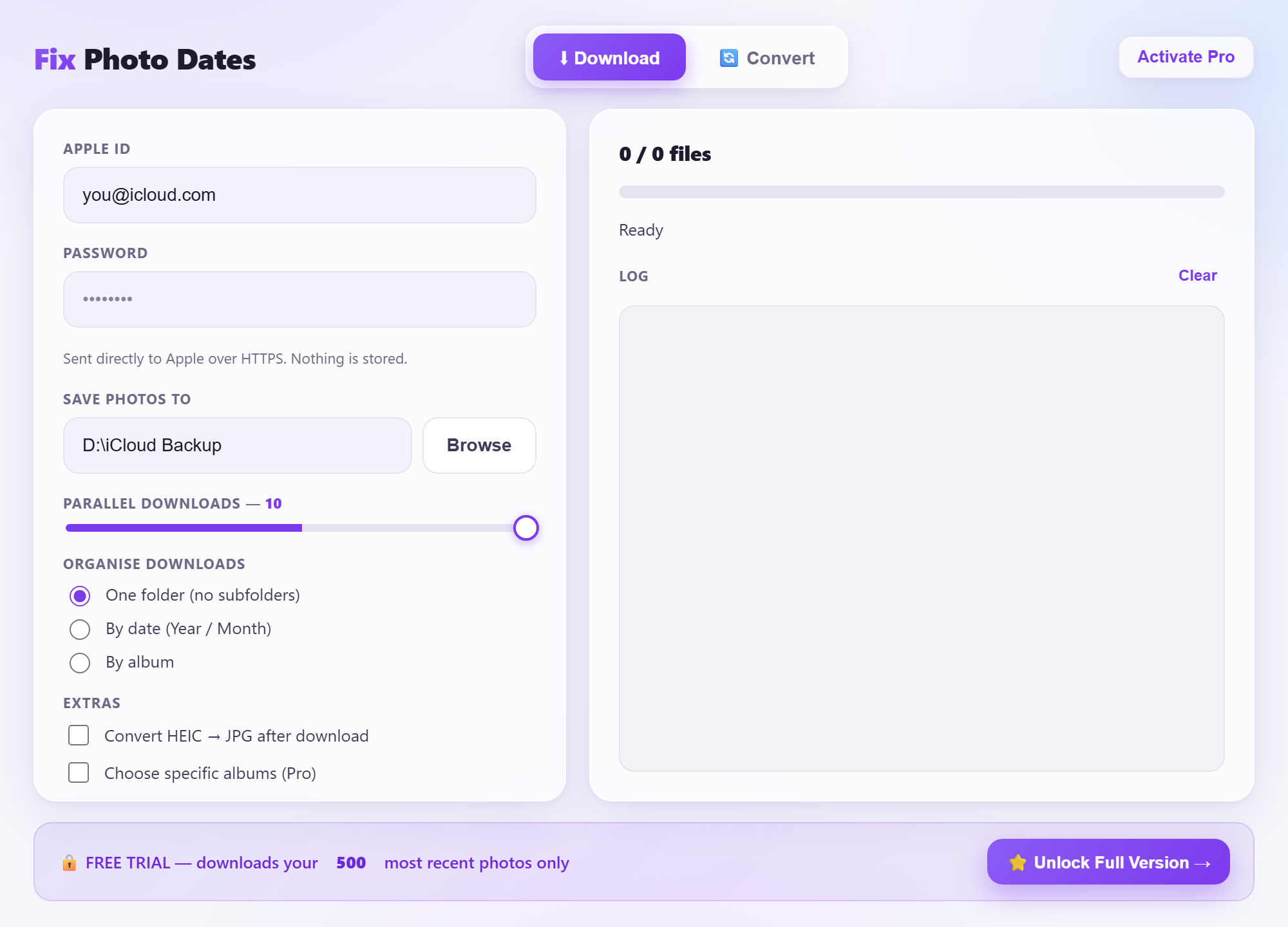
Enter your Apple ID and password, then choose where to save your photos.
- Save photos to: click Browse and pick a folder (an external drive is ideal for a big library).
- Organise downloads: keep everything in one folder, or sort automatically by date or by album.
- Convert HEIC → JPG: tick this if you want iPhone photos to open in any Windows app.
Enter your verification code
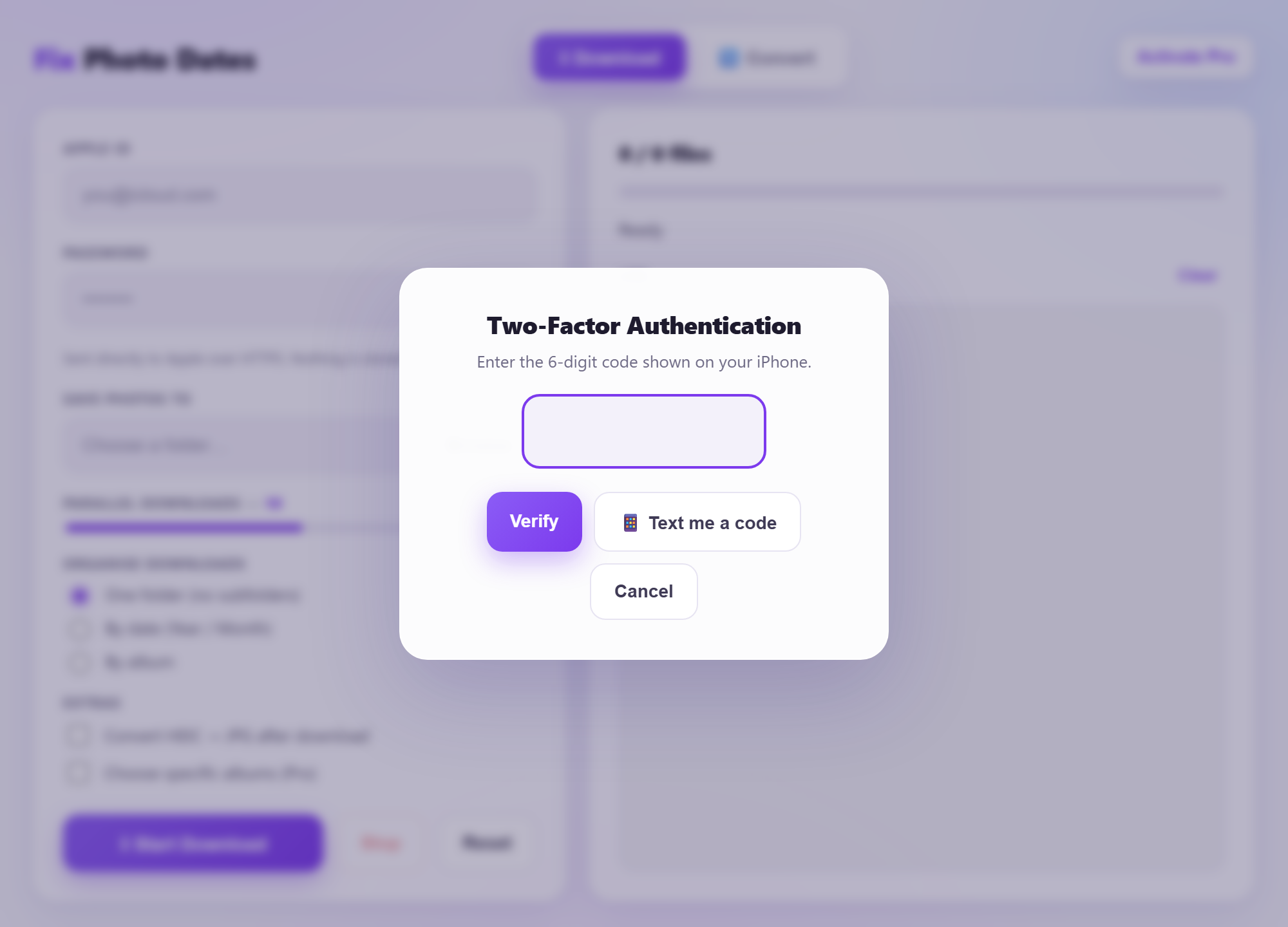
Apple protects your account with two-factor authentication. A 6-digit code appears on your iPhone or iPad. Type it in to continue.
- No code showing? Tap Text me a code to get it by SMS instead.
- You only do this once per device; Apple remembers it next time.
Choose what to download
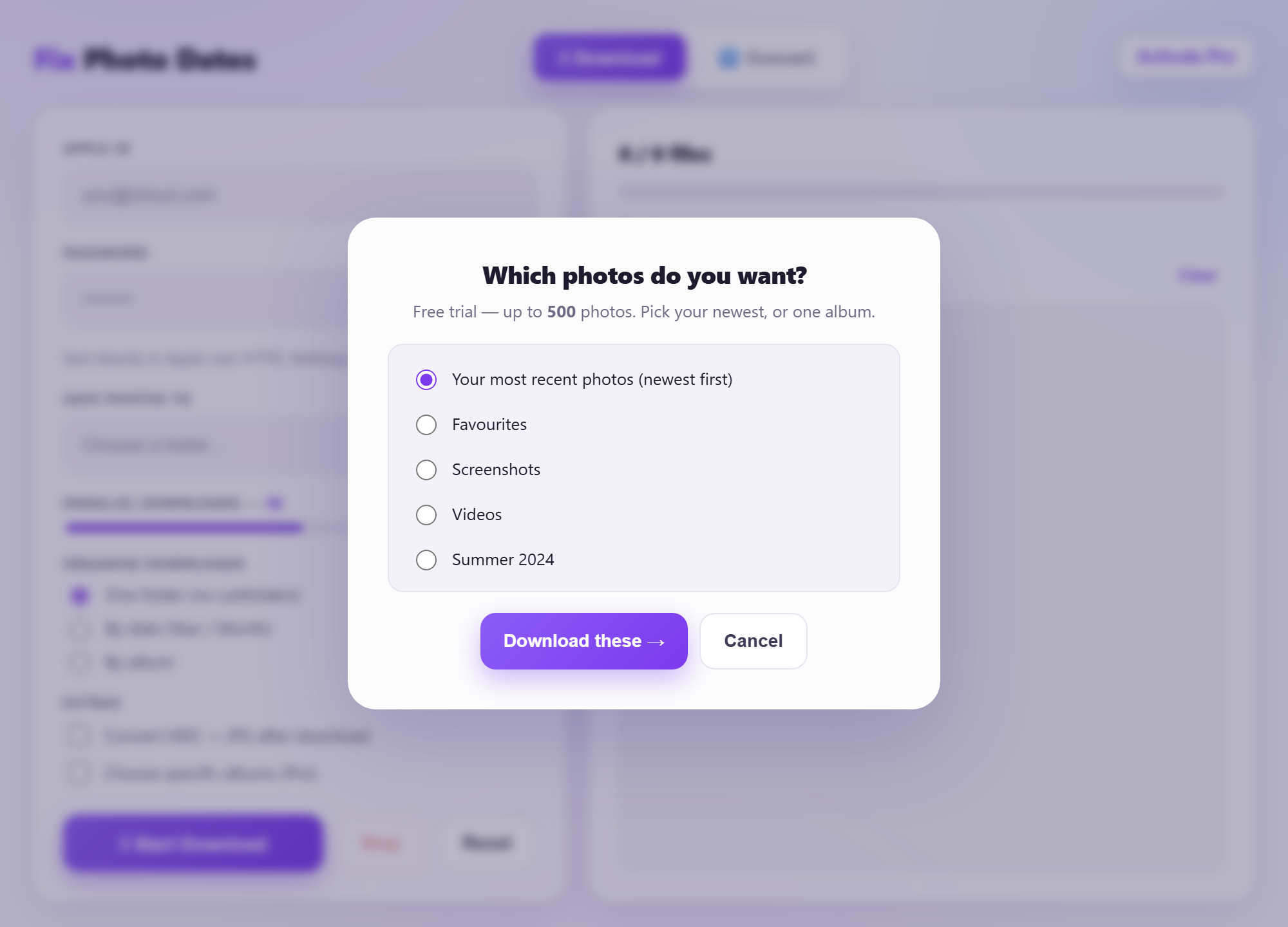
On the free trial, pick your most recent photos or a single album. Then press Download these →.
- Your most recent photos: the newest 500, great for a quick try.
- One album: pick any album from your library instead.
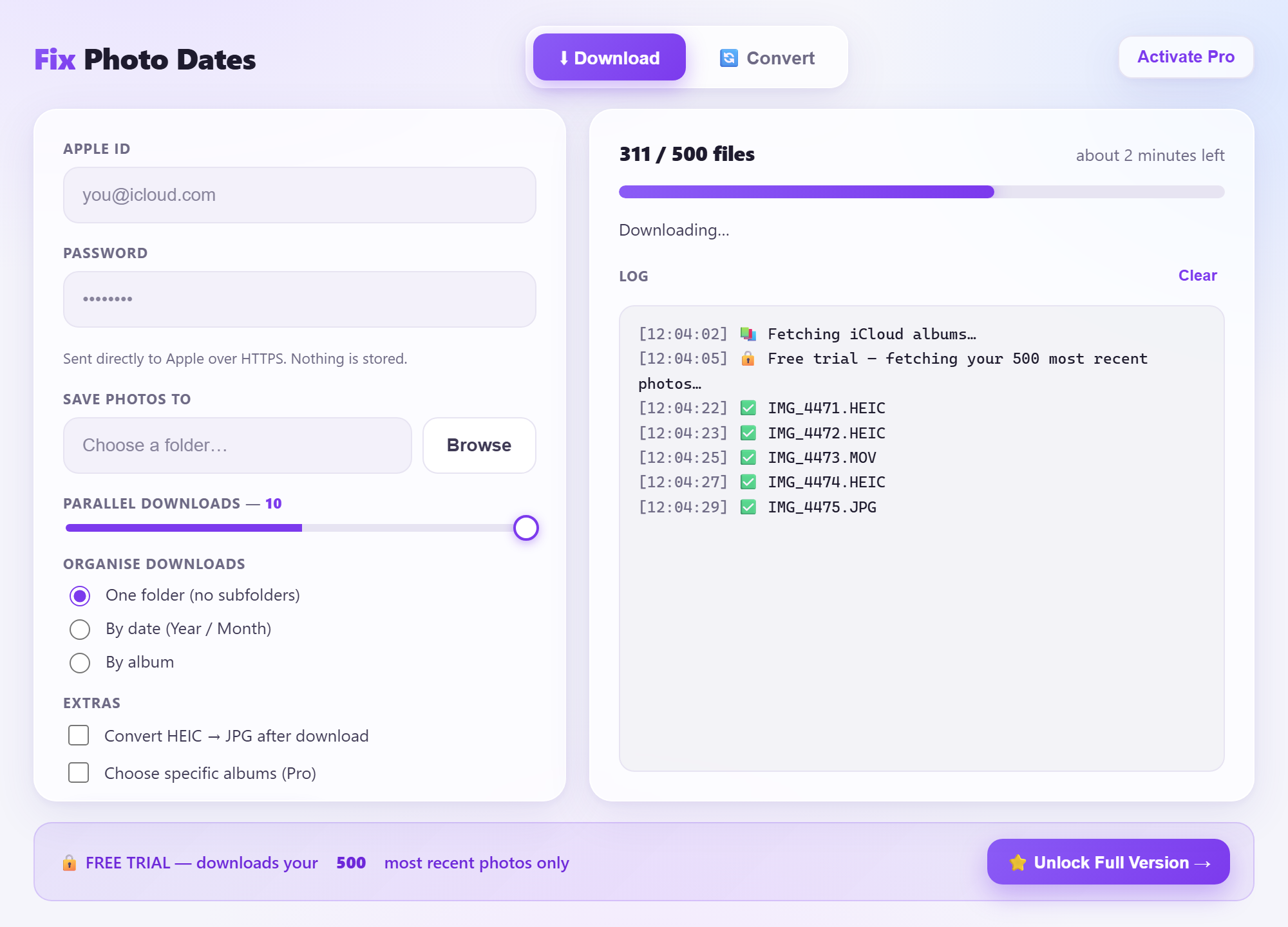
Watch it download
Sit back. The app downloads your photos and videos in parallel and writes the correct date to each one as it goes.
- The live log shows every file and a running time estimate.
- You can press Stop at any time; finished files are kept.
Your photos, with the right dates
When it finishes, open your folder in File Explorer. Every photo and video carries its original capture date and time, not today's date.
- The date is written into the file's metadata and the Windows file date.
- Your correct local timezone is preserved, so timelines stay accurate in Google Photos, Lightroom and Windows Photos.
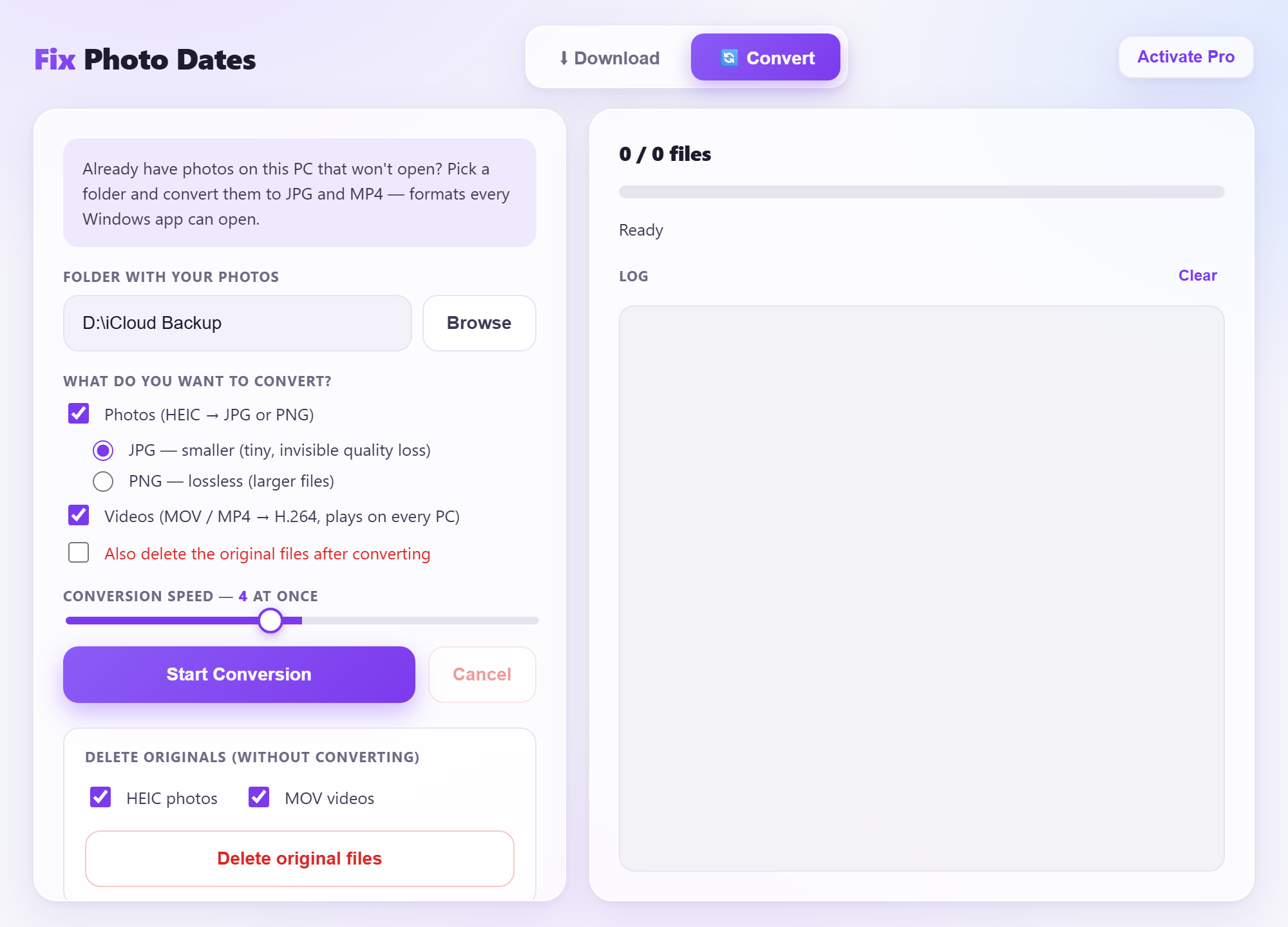
Convert old files to open anywhere
Already have iPhone photos on your PC that won't open? Switch to the Convert tab, pick a folder, and turn HEIC into JPG and MOV into MP4.
- Converted files keep their correct date.
- Optionally delete the originals once converted to save space.
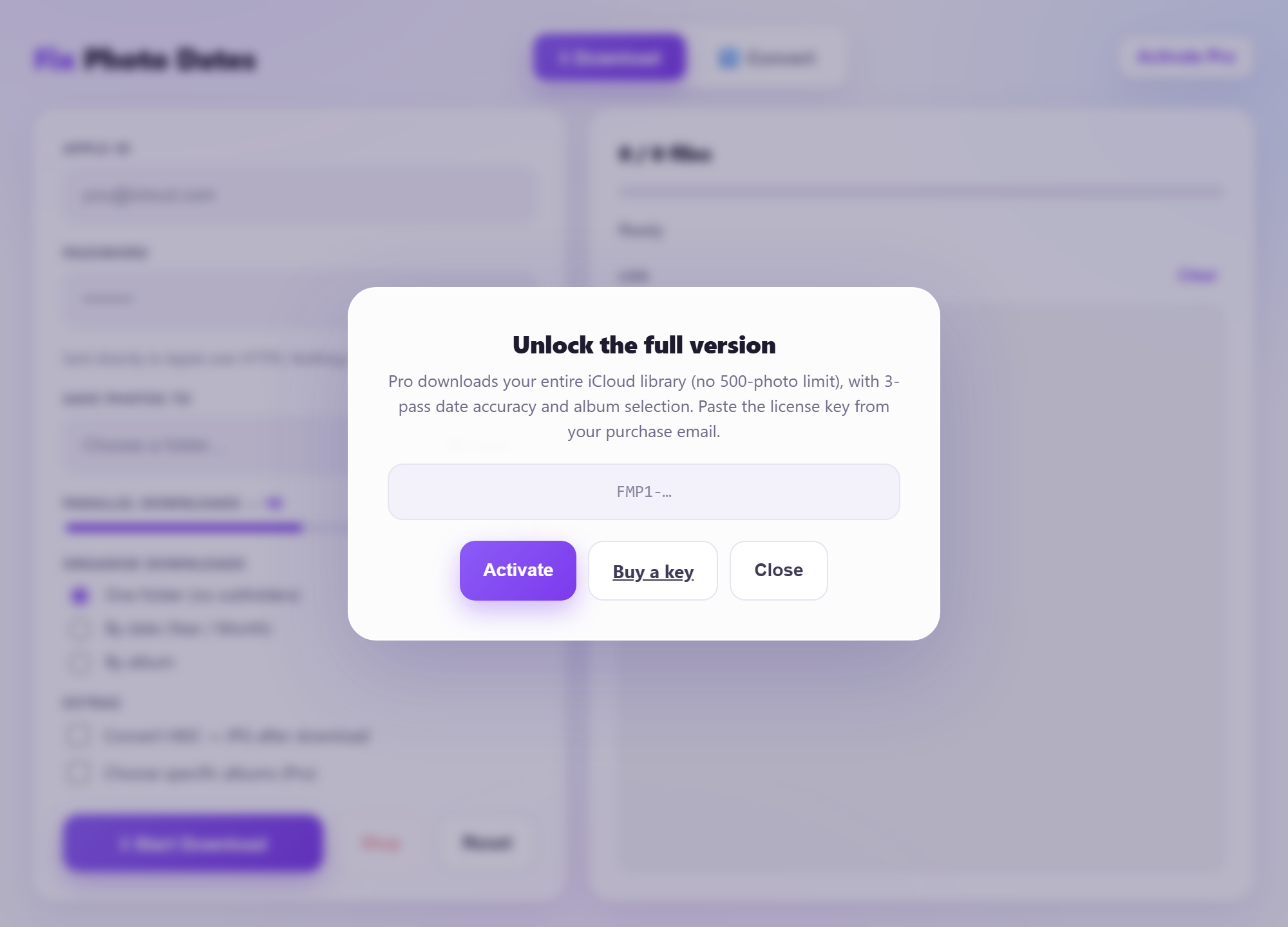
Unlock your entire library PRO
Ready for everything? Buy a Pro key, click Activate Pro, and paste it in. Pro removes the 500-photo limit and downloads your whole library, with the same exact dates and album selection.
- One-time purchase, no subscription.
- Your key activates instantly, even offline.
Ready to save your photos?
Start with the free trial: your 500 most recent photos, with the right dates.